
When using the Groundplan Pro Spektrix Integration, follow these steps to populate your event ids and event instance ids.
Events
Related Spektrix Event ID
- In Spektrix, navigate to Admin >> Events
- Select your Event.
- Under "Basic Details" Copy the numeric Event ID (e.g. 00001)
- Paste the numeric Event ID in WordPress as your Related Spektrix Event ID.
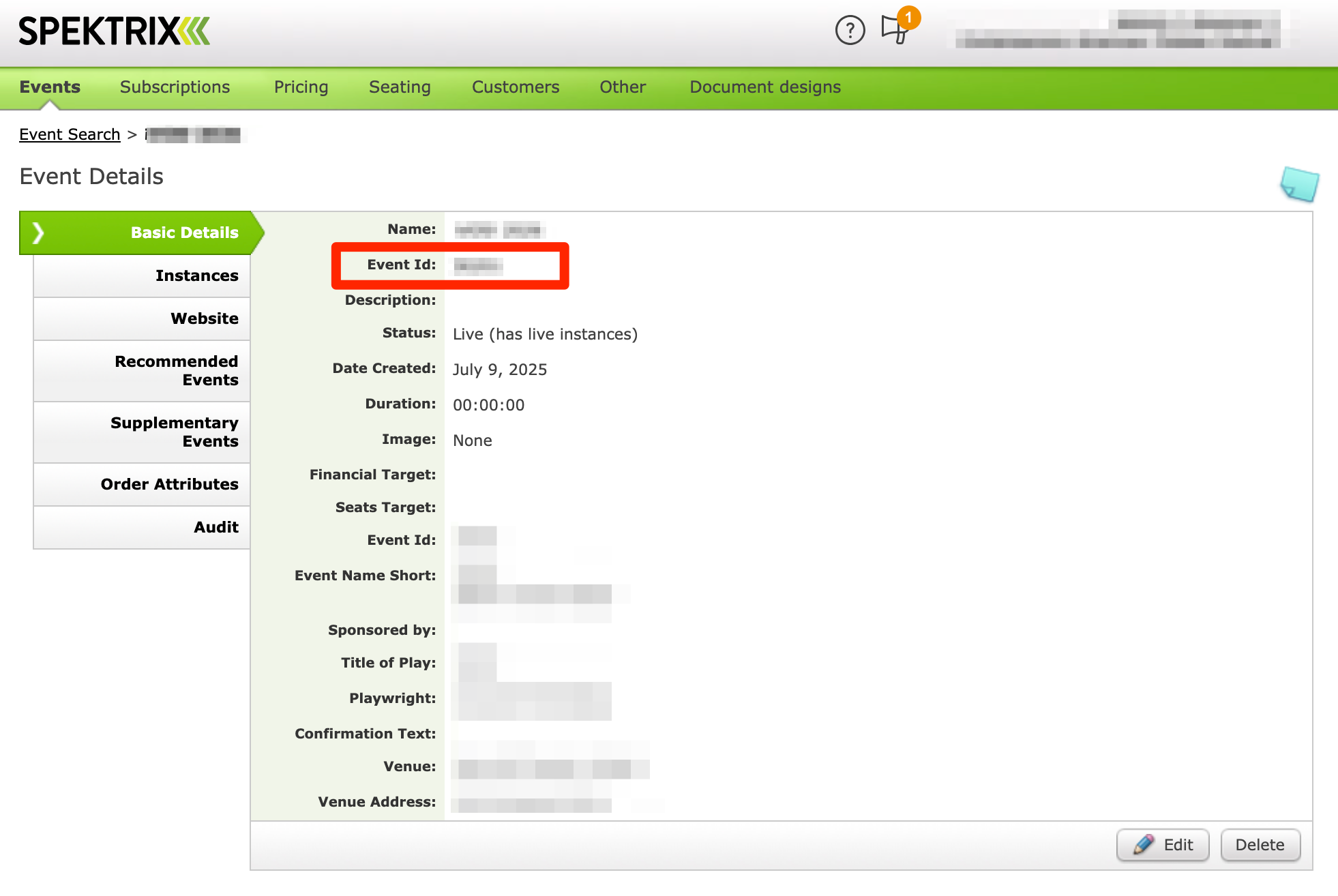
- The Related Spektrix Web Event ID is not required - that's an optional configuration for the readable text Event ID, but it's less reliable than the numeric Event ID.
Event Instances
Each event instance in your WordPress event needs a related Instance ID to ticket that performance. Each event instance should represent an actual scheduling
- In the same Admin >> Events >> Event window, click the "Instances" tab
- For each instance in the event:
- Open the first instance date.
- Copy the numeric Event Instance ID
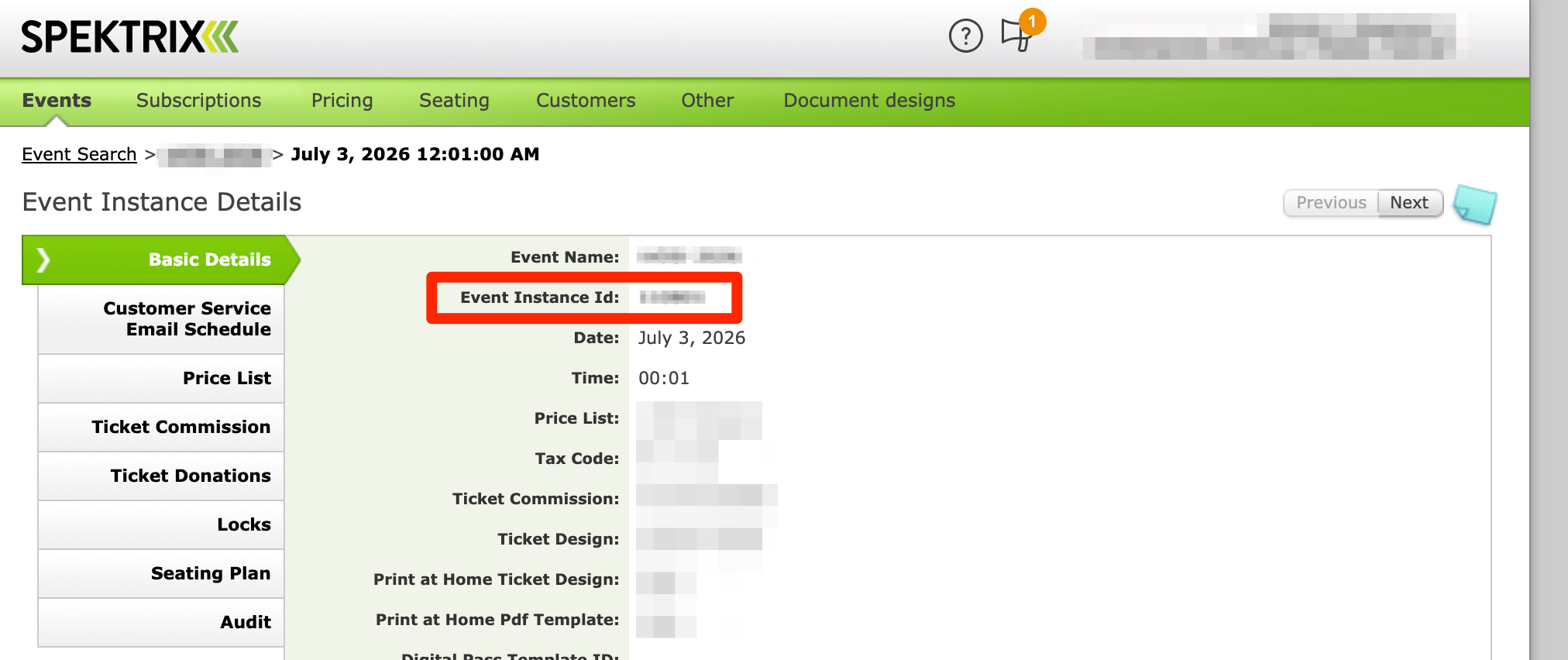
- In your WordPress Event, under Event Instances, click "+Select Venue"
- Select the venue for your performance to create a new WordPress Event Instance
- When the new instance appears, paste your Instance ID under "Ev. Instance ID"
- Select the exact Date & Start Time for your instance.
- If the performance date has special circumstances like a talkback or preview performance, select an alternate Performance Type.
- Continue until all Event Instances are populated
- Navigate to your Event Calendar or Preview page for your event and test all links for correct date and time.