
TABLE OF CONTENTS
Do I need to include Cookie Consent Popups?
An increasing number of US States have passed web data privacy laws that you may need to be compliant with if you operate in those states.
- As of April 2026, 20 US states now have comprehensive or related privacy legislation including CA, CO, CT, DE, FL, IN, IA, KY, MD, ME, MI, MN, MT, NH, NE, NV, NJ, NY, OR, RI, TN, TX, UT, VA, VT, WA.
- In most cases, the threshold of covered businesses are if your data list is greater than 100,000 residents of the state; or over ~25K residents and you derive over 50% of your revenue from selling personal data. In most cases, our clients don't typically qualify but some customers may expect cookie preference tools. The law in your state may vary.
- Special carve outs sometimes affect HIPAA-classified data and the personal data of minors when you reasonably know the data is for a minor, such as in a camp or class registration form. The law in your state may vary.
Setting Up Cookie Consent (WPConsent)
WPConsent adds a cookie/tracking consent banner and privacy-preference center to your site, so you can comply with cookie and data-privacy laws (CCPA/CPRA, GDPR, and similar state laws) that require disclosing and, in some cases, gating tracking cookies. This article walks through installation, the defaults Gameflow applies for you, connecting it to Google Tag Manager, and categorizing your site's cookies.
Basic Installation
Go to Plugins in the WordPress admin sidebar.
Activate the WPConsent plugin.
The WPConsent setup wizard begins automatically. Click Let's Get Started.
Enter your email address to set up your free WPConsent account.
After scanning your site, you'll see the set of cookies WPConsent detected. In general, leave all detected categories selected for configuration. On this screen you can also choose whether "Prevent known scripts from adding cookies before consent is given" is opt-in or opt-out — make this opt-out rather than opt-in for tracking, in most cases (see the decision aid below).
Decision aid — opt-in vs. opt-out:
- Most US privacy laws (CCPA and similar state laws) do not require opt-in consent for tracking — they require an easy way to opt out. This currently includes CA, CO, CT, MT, OR, DE, NH, NJ, and NE. If your traffic is primarily US-based, opt-out (cookies load by default until a visitor rejects them) is the right model, and it's Gameflow's default.
- If you have a lot of EU/UK/Canadian patrons, or your organization wants to comply with GDPR-style rules regardless of visitor location, switch to opt-in instead (cookies stay blocked until the visitor affirmatively accepts) to comply with those laws.
We recommend the long banner with bottom position. Click Save & Complete Setup.
Once the wizard finishes, the site automatically applies the following starting defaults. You're free to change any of these afterward in WPConsent → Settings:
Setting Where to change it Gameflow default Why Respect Global Privacy Controls Settings → Advanced tab On Automatically declines non-essential cookies (and skips the banner entirely) for any visitor whose browser sends a GPC signal. Most US states with privacy laws require GPC compatibility. Default Allow Settings → Settings tab On Cookies load until a visitor actively rejects them (opt-out model) — matches the decision aid in Step 5 above for opt-out-law states. This will result in significantly more ad tracking and more analytics data for your campaigns, as most users choose the default. Settings Button Settings → Settings tab On Adds a floating button so visitors can reopen their preferences and change (or withdraw) consent at any time after the banner closes. Script Blocking Settings → Settings tab On Holds non-essential scripts back until consent is resolved. Needs the Google Tag Manager setup below to actually gate Google tags. Google Consent Mode Settings → Settings tab On Reports visitor consent state to Google Analytics/Ads/Tag Manager — see Edge Cases below for exactly what this does (and doesn't) do on its own. Consent Duration Settings → Settings tab 30 days How long a visitor's choice is remembered before the banner can reappear. Banner Background Color Banner Near-black ( #111111)A safe standard dark banner styling - you can change this to a dark brand color if you want to draw more attention to the popup. Accept Button Color Banner Your site's primary button color Matches the theme's Button Color (Primary) customizer setting, with contrasting text calculated automatically so it stays readable. In WPConsent → Dashboard, under "Cookie Policy configured," select Choose Page and select your Privacy page (typically
/privacyor/privacy-policy). Make sure your Privacy page is updated to include your cookie compliance policies.
Update your Google Tag Manager Account
Update your Google Tag Manager account to implement Google Consent Mode — this holds back your tags until consent is given via the plugin.
Follow the steps here: https://wpconsent.com/how-to-set-up-google-consent-mode-v2-wordpress-with-google-tag-manager/#aioseo-step-4-set-up-the-wpconsent-gtm-template-85
Cookies will not be reliably blocked according to user preferences until this step is complete.
Gameflow can do this for you, but it's out-of-scope of normal managed hosting work, and a small project to work through all your tags - you can request this set up at support@gameflow.design, or follow these steps yourself.
For all non-Google tags in your GTM container (e.g. Facebook or local media advertisers — do not do this for Google Ads, Google Tags, Google Analytics, or Conversion Linker), follow these steps for each tag:
- Edit the tag → Advanced Settings → Consent Settings.
- Select "Require additional consent for tag to fire."
- Click Add Required Consent.
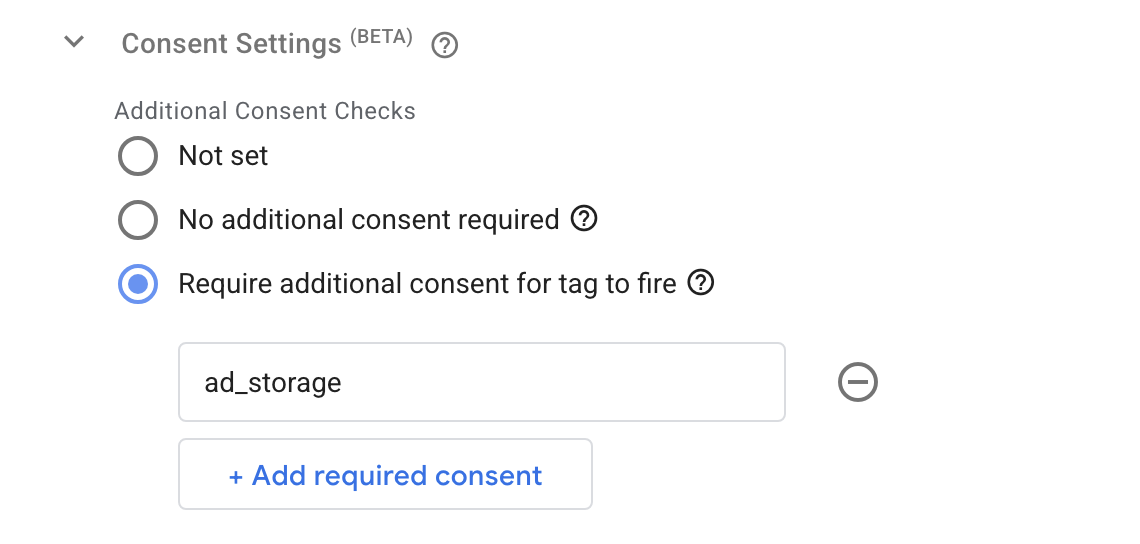
- Choose the closest consent condition for the tag:
ad_storage— marketing/advertising tracking (e.g. Facebook pixels). Most non-Google ad and remarketing pixels belong here.analytics_storage— statistics tracking not related to ads (e.g. a non-Google analytics tool).ad_user_data— specifically for sending user data related to advertising to Google.ad_personalization— specifically for personalized-advertising preferences.
Test your site and categorize your Cookies
Run the real-time scanner. Go to WPConsent → Scanner → Inspector and click Start Inspector. This tests that cookies are blocked properly after rejection. After the front page of your site loads, click Review Cookies from the popup.
Assign each detected cookie a category, e.g. "Statistics" or "Marketing." This process can be sped up if you purchase and install a Pro WPConsent license.
Decision tree — categorizing a detected cookie:
- Name contains
_fbpor_fb→ usually Facebook/Meta → Marketing. - Name is
_ga(or_ga_*) → Google Analytics → Statistics. - Name starts with
_gcl_*→ Google Ads (Adsense/Ads click ID) → Marketing. - Anything else → look it up on https://cookiedatabase.org or https://cookie.is for the vendor and purpose, then categorize accordingly.
- Name contains
After completing cookie configuration, run WPConsent → Scanner → Inspector again and confirm all cookies are behaving correctly.
Ongoing Tag Setup
Whenever you or a marketing service agency adds a new Google Tag Manager tag, rerun the Inspector to make sure the new tracking tag is covered by consent filters. If the Tag isn't a Google Tag, you also need to set Advanced Settings >> Consent Settings >> Require additional consent for tag to fire.
Gameflow works hard and proactively to help you with compliance, but ultimately your organization is responsible for its own compliance with applicable laws.
Edge cases
- Google Consent Mode is enabled by default. Here's what that actually does:
- Reports visitor consent to Google services (Analytics, Ads, Tag Manager) using the v2 consent signals:
ad_storage,analytics_storage,ad_user_data,ad_personalization, andpersonalization_storage. - Each signal's starting ("default") state follows your Default Allow setting, and updates the moment the visitor responds to the banner (or a GPC signal is detected).
- By itself, inside WordPress, it only reports consent state — it does not stop a Google tag from firing. Actually gating Google tags requires the Google Tag Manager setup in the section above (the WPConsent GTM template listens for these signals).
- Even when a visitor denies consent, Google's tags can still send limited "cookieless pings" so Google can statistically model lost conversions — no personal data or cookies are stored in that case. This is expected Google behavior, not a WPConsent bug, and is part of how Consent Mode v2 is designed to work.
- Reports visitor consent to Google services (Analytics, Ads, Tag Manager) using the v2 consent signals:
- Global Privacy Control (GPC) is enabled by default. Here's what that actually does:
- GPC is a browser- or extension-level setting (similar in spirit to the old "Do Not Track" header, but with real legal weight) meaning "opt me out of the sale/sharing of my personal information." It's legally recognized in California (CCPA/CPRA) and Colorado (CPA), and a growing list of other states.
- When WPConsent detects a visitor's browser GPC setting, it automatically declines non-essential cookies for that visitor and skips showing the consent banner — they're never asked, because their browser already answered.
- This overrides the opt-out (Default Allow) behavior for that visitor specifically — everyone else still gets the normal opt-out experience.
- A GPC visitor can still reopen the Settings Button / preferences panel and manually opt back in to a specific category if they choose to.
- Microsoft Clarity will be suppressed by default until the user has opted in, as Clarity's heat-mapping represents a higher level of personal data collection. Adjust this under Advanced Settings → Clarity Consent Mode. More detail on staying compliant here: https://wpconsent.com/docs/clarity-consent-mode
Troubleshooting
- If the Inspector is still showing cookies that aren't honoring user settings, try hitting the refresh button in the Inspector window.
- Gameflow may also need to adjust your Autoptimize (or similar script-optimization plugin) settings on your site — script deferring/combining can interfere with WPConsent's ability to hold a script back before consent is given. Just send a support ticket to support@gameflow.design letting us know you've enabled WPConsent, and we'll check your configuration.
More questions?
For anything beyond this article, WPConsent's full documentation is here: https://wpconsent.com/docs/